Sample Test -For Learners' Awareness
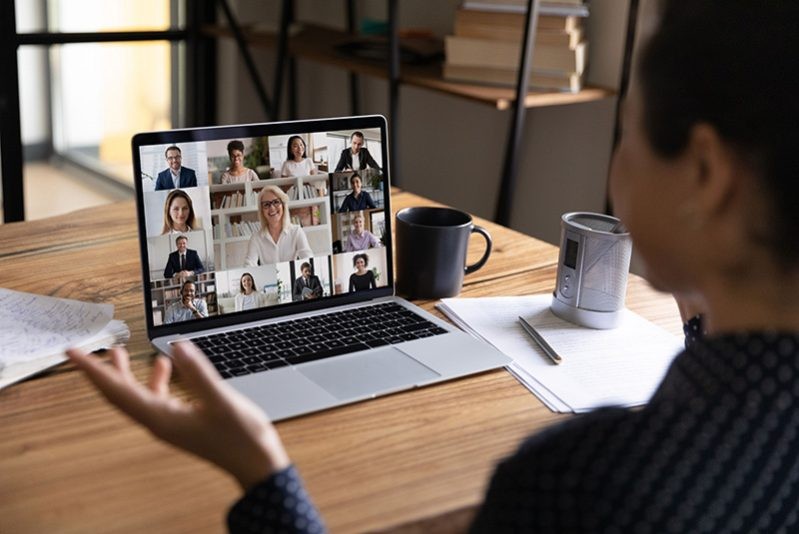
How to Take an Exam? 1. Upon confirmation of your Registration for the examination, you will receive a link with your user ID and password. Use your name, an email address, and the password provided to access the examination platform 2. Verify your identity for the Proctor examination 3. Time counter will show the remaining time for the exam 4. All questions are mandatory 5, You have to answer the open question to move to the next 6. In case of any doubt, you can flag these questions to come back to improve the answer subsequently 7. You are not allowed to take a break unless there is an emergency, because the exam duration does not allow for break time 8. Once the exam Time is over, the attempted answers are saved, and your exam is automatically submitted 9. When the exam is open book, You Use and refer Approved reference documents, standards Or codes Take a Demo Test using Class Marker https://www.classmarker.com/online-testing/demo/ Automated Exam Proctoring using Camera monitoring Automated webcam Proctoring Camera Monitoring allows us to verify the participant’s identity and confirm their presence throughout the entire Exam session. The process is fully automated—no live proctor is involved. Camera Monitoring does not record continuous video; instead, it takes random snapshots during the test. Requirements : 1. Identity verification: Photos will be taken before, during, and after the test to verify the test taker’s identity. 2. We would require your Governmental Authority issued September Photo ID.: The test-taker will be requested to show a Photo ID when taking the first photo. Note: Request Photo ID is not a file upload feature but a simple request to the user to take a photo with their ID document. 3. Face detection during the Test : Our AI-powered face detection feature ensures that the test taker remains in front of the screen at all times, helping to confirm their presence throughout the entire session. If the test taker leaves the screen or if multiple faces are detected, the system alerts the user and logs the event in the results for the administrator. What is tracked and logged: 1. When the user’s face is not visible 2. When multiple faces are present 3. How it works during the Test Before the Test starts: 1. The user is prompted by the browser to allow access to their camera. 2. The user must take an initial photo (with an option to require a Photo ID). 3. Camera Monitor Test permissions 4. CameraMonitor Test instructions During the Test: 1. The user sees a video thumbnail 2. A photo is taken randomly during the test When Face Detection is enabled: 1. The user’s face must remain visible at all times. If the face disappears or if a second face appears, the user is warned, and the event is logged for the administrator . Automated Camera Proctors During the test After the Test: 1. A final photo is taken when the user finishes the test. How we view Camera Monitoring data 1. As Face Detection is enabled, an orange flag icon appears next to users who triggered too many events. Proctoring Results overview 1. Proctoring Results 2. How does the flagging system work? Our exam platform ClassMarker strives to ensure fairness for all test takers. The algorithm includes a built-in margin of error that allows up to 5 seconds away from the test and a maximum of two ‘left’ events. This provides some flexibility for minor mistakes early on. 3, Here is the scale we use: No events No flagged events icon No flag 2 events or less Less than 5 seconds away 0 camera events No flagged events icon Within the margin of error No flag but events are visible in results 3 events or more 5 seconds away or more 1 camera event or more Flagged events iconFlag 4. Photo retention For privacy and security reasons, all photos are automatically deleted after a specified period.
$ 0
-
 Students
3
Students
3
-
 Enrolled
3
Enrolled
3
-
 Mode
Online Self-Paced
Mode
Online Self-Paced
-
 language
English
language
English
-
 Duration (in hours)
0:30
Duration (in hours)
0:30
- Level Foundation